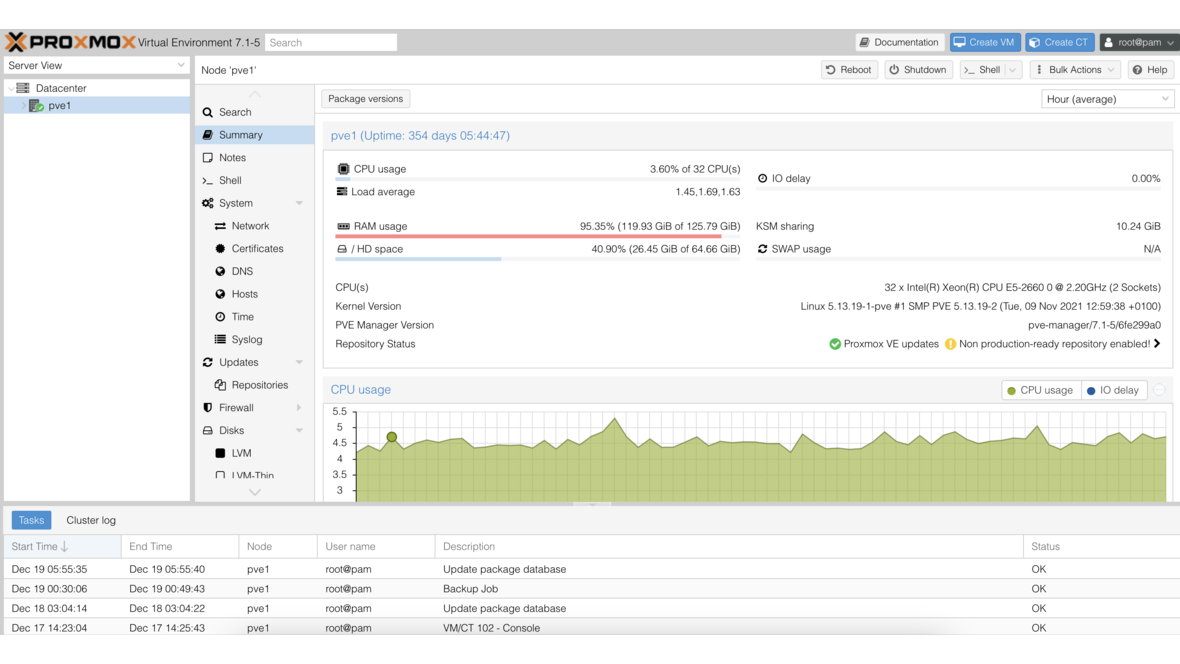
GPU passthrough allows a physical graphics card to be passed directly to a virtual machine. The VM gets exclusive access to the GPU — with near-native performance. On Proxmox VE, this is particularly relevant for AI training, CAD workstations, video rendering, and high-performance remote desktop environments.
What Is PCI Passthrough?
PCI passthrough (also VFIO passthrough) is a technology where a physical PCIe device is assigned directly to a virtual machine. The hypervisor completely hands over control of the device to the VM — from the VM’s perspective, the hardware is present as if it were physically installed.
This works not only with graphics cards but also with:
- NVIDIA/AMD GPUs — AI training, CAD, rendering
- HBA controllers — Direct disk attachment (e.g., for TrueNAS in a VM)
- Network cards — 10/25 GbE NICs for maximum network performance
- USB controllers — Pass entire USB hubs to a VM
- Capture cards — Video capture and streaming
Prerequisites
Hardware
- CPU with IOMMU: Intel VT-d or AMD-Vi (all current server and desktop CPUs)
- Motherboard with IOMMU support: Enabled in BIOS (VT-d / AMD-Vi / IOMMU)
- Clean IOMMU groups: The GPU must reside in its own IOMMU group — not shared with other devices
- Second graphics card or IPMI: The host needs its own graphics output (onboard GPU, IPMI, or second card)
Software
- Proxmox VE 7.x or 8.x (recommended: latest version)
- UEFI/OVMF as VM BIOS (recommended for GPU passthrough)
- Current GPU drivers in the guest operating system
Setup Step by Step
1. Enable IOMMU in BIOS
In the server or motherboard BIOS:
- Intel: Enable VT-d (under CPU Features or Advanced)
- AMD: Enable IOMMU / AMD-Vi (under NBIO or Advanced)
2. Enable IOMMU in the Kernel
Extend the kernel command line in /etc/default/grub:
Intel:
GRUB_CMDLINE_LINUX_DEFAULT="quiet intel_iommu=on iommu=pt"AMD:
GRUB_CMDLINE_LINUX_DEFAULT="quiet amd_iommu=on iommu=pt"Then run update-grub and reboot. The iommu=pt option (passthrough mode) ensures only assigned devices go through IOMMU — improving performance for all other devices.
3. Load VFIO Modules
Add to /etc/modules:
vfio
vfio_iommu_type1
vfio_pci
vfio_virqfd
4. Detach GPU from Host Driver
The GPU must not be claimed by the host. Identify the PCI IDs:
lspci -nn | grep -i nvidia
# Example: 01:00.0 VGA compatible controller [0300]: NVIDIA Corporation ... [10de:2684]
# Example: 01:00.1 Audio device [0403]: NVIDIA Corporation ... [10de:22ba]
Enter the IDs in /etc/modprobe.d/vfio.conf:
options vfio-pci ids=10de:2684,10de:22ba disable_vga=1Important: Include both the VGA controller and the associated audio device.
Blacklist host GPU drivers (/etc/modprobe.d/blacklist.conf):
blacklist nouveau
blacklist nvidia
blacklist nvidiafb
blacklist radeon
blacklist amdgpu
Run update-initramfs -u and reboot.
5. Verify IOMMU Groups
After reboot, check the IOMMU groups:
find /sys/kernel/iommu_groups/ -type l | sort -VThe GPU should be in its own group. If other devices share the group, all devices in the group must be passed through — or an ACS patch is needed.
6. Configure the VM
Create a new VM in Proxmox:
- BIOS: OVMF (UEFI)
- Machine: q35
- CPU: host (important for GPU driver compatibility)
- Display: none (after GPU driver installation)
Add the GPU as a PCI device:
- VM → Hardware → Add → PCI Device
- Select GPU
- All Functions: enable (GPU + Audio)
- Primary GPU: enable (if the VM should use the GPU as its main display)
- ROM-Bar: enable
- PCI-Express: enable
7. Install Guest Drivers
Install the appropriate GPU driver in the VM:
- NVIDIA: Official NVIDIA drivers (not Nouveau)
- AMD: amdgpu driver (Linux) or Adrenalin (Windows)
Typical Use Cases
AI and Machine Learning
NVIDIA GPUs (A100, H100, RTX 4090) are passed through to VMs running CUDA workloads. Proxmox enables multiple AI workloads on a single server — each VM receives its own GPU.
For multi-GPU servers: Each GPU can be assigned to a separate VM. A server with 4× RTX 4090 can run 4 independent AI VMs.
CAD and Engineering
CAD applications (SolidWorks, AutoCAD, CATIA) require a capable GPU. Via passthrough and remote desktop (Parsec, NICE DCV, Teradici), CAD workstations can be centrally provisioned as VMs — without expensive workstations at the desk.
Video Rendering and Transcoding
Render farms with Blender, DaVinci Resolve, or FFmpeg benefit from GPU-accelerated encoding. GPUs are assigned to render VMs on demand.
Windows Desktops with GPU
Windows VMs for graphics-intensive applications (design, simulation, gaming) receive full GPU performance via passthrough. Combined with a remote desktop protocol, powerful virtual workstations can be operated.
Common Issues and Solutions
“Error 43” with NVIDIA GPUs in Windows VMs: NVIDIA drivers detect VMs and refuse to work (consumer GPUs). Solution: Hide the hypervisor in the VM configuration:
args: -cpu 'host,+kvm_pv_unhalt,+kvm_pv_eoi,hv_vendor_id=proxmox,kvm=off'With newer NVIDIA driver versions (R530+), this issue is largely resolved.
GPU won’t detach from host:
Verify the host driver is truly blocked (lsmod | grep nvidia). VFIO must load before the GPU driver — the order in initramfs is critical.
IOMMU group contains multiple devices: Either pass through all devices in the group or use the ACS override patch. Server motherboards typically have cleanly separated IOMMU groups.
No display after passthrough: Set display in Proxmox to “none” and use remote access (VNC, Parsec, RDP). Alternatively, connect a monitor directly to the passed-through GPU.
Performance Comparison
| Scenario | Bare Metal | VM with Passthrough | VM without Passthrough |
|---|---|---|---|
| CUDA training | 100% | 97–99% | Not possible |
| OpenGL rendering | 100% | 95–98% | 10–20% (virtio-gpu) |
| Video transcoding | 100% | 97–99% | Not possible |
| DirectX (Windows) | 100% | 95–98% | Not possible |
The performance overhead from passthrough is typically 1–5%. For most workloads, the difference to bare metal is not measurable.
Frequently Asked Questions
Can a GPU be assigned to multiple VMs simultaneously?
Not with PCI passthrough — a GPU is exclusively assigned to one VM. For GPU sharing, there’s NVIDIA vGPU (requires license) or SR-IOV (only certain GPU models). Alternative: Multiple GPUs in the server, one per VM.
Does passthrough work with AMD GPUs?
Yes. AMD GPUs often work even better since AMD has no anti-VM detection in their drivers. Both under Linux and Windows, AMD passthrough is straightforward.
Which NVIDIA GPUs are best suited?
For AI/ML: A100, H100, L40S (datacenter GPUs — no passthrough restrictions). For desktop/CAD: RTX 4080/4090 (consumer GPUs — Error 43 workaround needed but works well). Quadro/RTX Professional is the middle ground without restrictions.
Can I still access the Proxmox console after passthrough?
Yes — via SSH, the Proxmox web interface, or IPMI. Only the host’s physical graphics output is affected if the passed-through GPU was the only GPU in the system.
Want to set up GPU passthrough on your Proxmox infrastructure? Contact us — we advise on hardware selection and handle the configuration.
More on these topics:
More articles
Proxmox for Beginners: Your First VM in 30 Minutes
Proxmox beginner guide: install the ISO, set up the network bridge, create your first VM, use Cloud-Init and plan a backup — no prior knowledge, done in 30 minutes.
TrueNAS Proxmox Plugin exits pre-announcement: early-adopter rollout with signed APT repo
iXsystems has moved the TrueNAS storage plugin for Proxmox VE from pre-announcement to a concrete early-adopter rollout — signed APT packages for Bookworm and Trixie, a cluster-aware installer, multi-tenancy against a single TrueNAS, and official early-adopter status. What is new, what it means in practice, and where the limits are.
Proxmox Datacenter Manager 2026: a practical status after one year
What the Proxmox Datacenter Manager (PDM) really delivers in 2026: multi-cluster overview, central migration, SSO. What is still missing versus vCenter. A practical update from the trenches.